
Coastline Domain
The BP_FluxCoastlineDomain is a dedicated system designed specifically for capturing and baking world data into CoastlineState. The architecture of the BP_FluxCoastlineDomain system is similar to the BP_FluxSimulationDomain, ensuring consistency and familiarity.
The coastline state serves as a fundamental data source during the rendering process for coastlines and oceans. The BP_FluxCoastlineDomain can communicate with the FluxSurface actor and feed it with data needed to render the water as presented in the short video tutorial below:
Coastline state
The BP_FluxCoastlineDomain actor generates a state that can be exported and saved as the data asset and stored in the project files. The CoastlineState data asset can be used as an initial state in the BP_FluxCoastlineDomain actor or loaded directly in the BP_FluxSurfaceActor, the same way as in the case of the SimulationState.
Exporting the current coastline state can be described in a few simple steps:
- Create an empty coastline data asset to store the data.
Content Browser → Right mouse button → Miscellaneous →DataAsset->PDA_FluxCoastlineState - Export the state to the newly created data asset.
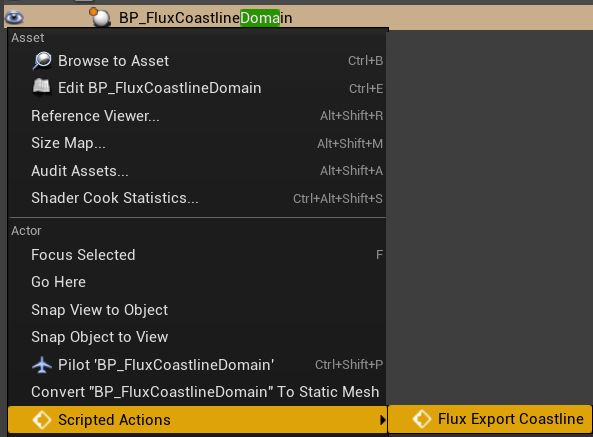
SelectCoastlineDomain→ Right mouse button → Scripted Action →FluxExportCoastline
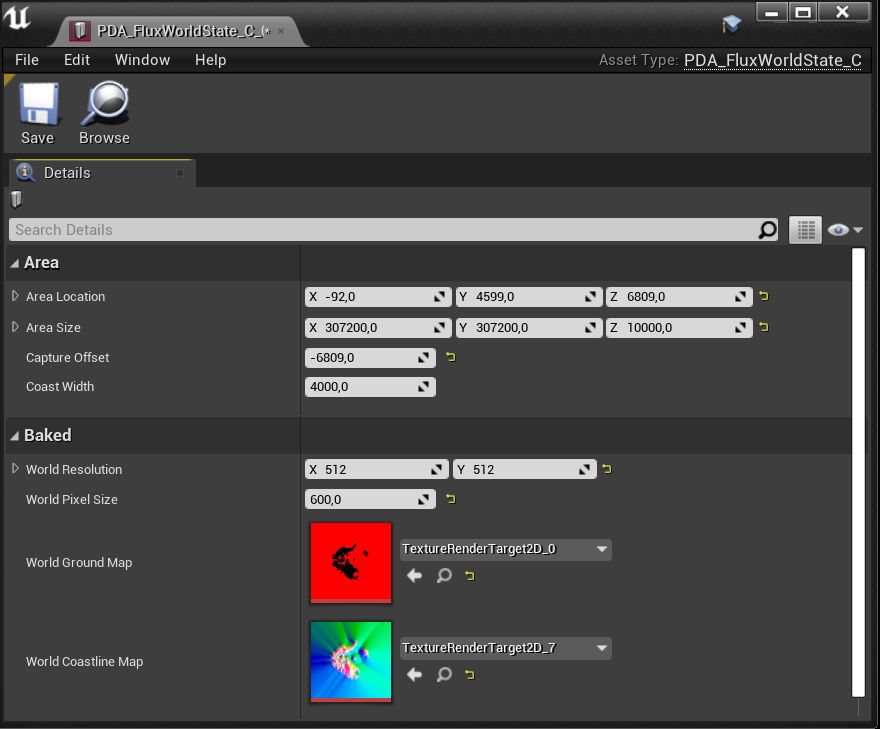
The exported CoastlineState data asset stores two textures:
WorldGroundMap stores the height map of the coastline area.
WorldCoastlineMap stores the distance to the coastline, direction, wave height, and blending of the coastline.
If you are not planning to update the coastline dynamically, then a better option might be to remove (or disable) the CoastlineDomain actor and use CoastlineState directly in the Surface actor. It may be much faster and more reliable, and it saves memory.
Try this configuration:
- Configure CoastlineDomain and export it to the state.
- Set
CoastlineDomain->AffectWorld= false - Set
CoastlineDomain->IsEditorOnlyActor= true - Set
Surface->CoastlineStatedirectly using the exported asset.
You don’t have to remove the domain actor from the scene because IsEditorOnlyActor will remove it automatically in the final build. Thanks to this, you can use it again later in the editor to regenerate the state if the level geometry changes.
Solving issues
If, after following the tutorial steps, the coastline does not appear, you have likely encountered one of the scenarios listed below:
Z location of the Coastline actor is wrong:
Remember that after adding the
BP_FluxCoastlineDomainactor on your map, you need to adjust the domain actor’s height (Z position) depending on your landscape. Otherwise, you may not be able to see coastline waves.The debug grid on top of the landscape geometry indicates everything works fine.
Landscape material uses Pixel Depth Offset:
If the “PixelDepthOffset” feature is used in the material, it may not be rendered to the ground map and cause some simulation problems. This can be easily fixed with a simple modification of your material.
Use the
MF_FluxPixelDepthOffsetmaterial node to disable “PixelDepthOffset” while caching the ground map.The
M_Photoscan_Mastermaterial is an example of a workaround for this problem using theMF_FluxPixelDepthOffsetnode.The coastline is incorrect in standalone/shipping or looks different after play
This issue is associated with the landscape not being ready during the map loading process, and the system utilizes a lower Level of Detail (LOD) for rendering the ground. A detailed explanation can be found in Ground capture – Solving issues. Two potential solutions are available:
– Use the RuntimeCaptureDelay attribute to postpone rendering the height map,
– Save the coastline to the state and directly load it from the data asset.