
Installation
Fluid Flux is a comprehensive solution for simulating realistic water surfaces and fluid interactions within Unreal Engine. This documentation outlines its core features, tools, and best practices to help users achieve optimal results.
Fluid Flux is distributed through the Fab marketplace and is installed directly into your Unreal Engine project using the Fab plugin built into the editor. This chapter walks you through the first installation of the package.
Already using Fluid Flux?
If the package is already installed in your project, follow the Updating process instead.
Requirements
| Requirement | Details |
|---|---|
| Unreal Engine | 5.3 – 5.8 |
| Older engine versions | 4.27 – 5.2 – these engine versions also have access to Fluid Flux, in version 2.0. |
| Engine plugins | Fab, Python Editor Script Plugin, Editor Scripting Utilities, Geometry Script, Procedural Mesh Component, Niagara – all included with the engine, see Project settings. |
Fluid Flux 2.0 for older engine versions no longer receives updates – new features and fixes are released only for the current version.
Before you begin
- Know the basics. A foundational understanding of the Unreal Editor, Blueprint visual scripting, and content management is beneficial when working with the system. Following the outlined procedures will ensure a streamlined workflow and effective implementation across various project types.
- Use the latest version. Fluid Flux is updated frequently. The current version is listed on the Fab product page.
- Install from inside the editor. The Epic Games Launcher library may not always show the newest release of a Fab product. Installing through the Fab plugin in the editor guarantees you receive the most recent build.
- Back up your project. Make a copy of the project or commit it to version control before adding the package.
Installing from Fab
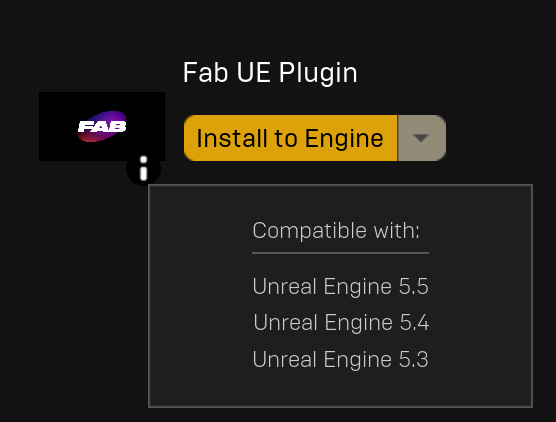
Enable the Fab plugin
In the editor, go to Edit → Plugins, find Fab and enable it.
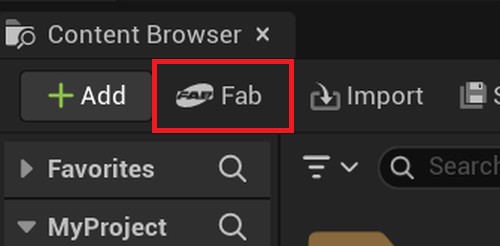
Open Fab in the editor
Open your project, launch Fab from the Content Browser and sign in to your Fab account.
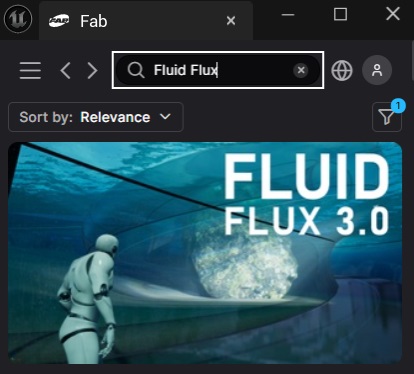
Add Fluid Flux to the project
Find Fluid Flux, open its page (double-click) and click Add to Project.
Add to Project is available once the product is in your Fab library. The installation works best with a clean FluidFlux folder – remove any previous copy of the package first.